
What’s the Difference Between Source & Medium in Google Analytics (GA4)?

Colin Differ
2 August 2024
Source and Medium in Google Analytics are something even the best digital marketers mix up sometimes. Google’s own guidance can be a bit wordy, so we thought we’d explain it simply.
This article was originally written for Universal Analytics. It has been fully updated for GA4, including how traffic from AI tools like ChatGPT shows up in your reports.
Source vs Medium in GA4
Source is where your website’s traffic comes from (Google, LinkedIn, ChatGPT, another website).
Medium is how it got there (organic search, paid ads, a referral link, an email).
People like analogies (apparently), so here’s one. Think of a journey: the Source is the train station you set off from, and the Medium is the train that got you there. Now the image at the top makes sense.
In GA4 you’ll usually see the two together, written as source / medium. For example, google / organic means someone found you through an unpaid Google search.
There’s also a third term worth knowing: Channel. Channels are named groupings of Source and Medium, such as Organic Search or Paid Search. We cover these in our article on what channels are in Google Analytics and how to change them.
In this article:
What is Source in GA4?
Source is where your traffic comes from. Google describes it as the origin of your traffic. Every visit has to start somewhere, whether that’s a search engine, a social network, an AI tool or another website.
In most cases the source is the name of a site, such as google, bing, linkedin.com or chatgpt.com.
When GA4 can’t tell where a visit came from, the source is recorded as (direct). This usually happens when someone types your URL into their browser, clicks a bookmark, or follows a link from a document or app that doesn’t pass on any information about where the click happened.
What is Medium in GA4?
Medium is how your traffic arrived. Google calls it the general category of the source. So the source might be google, but the medium could be organic (an unpaid search result) or cpc (a paid ad).
These are the mediums you’ll see most often:
|
Medium |
What it means |
Example source / medium |
|
organic |
Unpaid search results |
google / organic |
|
cpc |
Paid search ads (cost per click) |
google / cpc |
|
referral |
A link from another website |
linkedin.com / referral |
|
|
A link in an email, usually tagged with UTM parameters |
newsletter / email |
|
ai-assistant |
A link from an AI tool such as ChatGPT |
chatgpt.com / ai-assistant |
|
(none) |
No medium recorded, which usually means direct traffic |
(direct) / (none) |
One thing that surprises people: links from social networks often appear as referral rather than social. Unless you tag your social links (more on that below), a click from LinkedIn will usually show as linkedin.com / referral.
Where to find Source and Medium in GA4
The quickest place to see Source and Medium side by side is the Traffic acquisition report.
- In GA4, go to Reports.
- Open Acquisition, then Traffic acquisition.
- The table defaults to showing channels. Click the dropdown on the first column and choose Session source / medium.
You’ll now see every source / medium combination sending traffic to your site, with users, sessions and engagement for each.
If your reports menu has been customised and you can’t see Acquisition, type “Traffic acquisition” into the search bar at the top of GA4. Pick the result labelled as a report, rather than a saved exploration.
How AI traffic shows up in GA4
In May 2026, GA4 introduced the AI Assistant default channel, which groups together all the traffic from LLMs. More people now find websites through AI tools like ChatGPT, and that traffic is a perfect example of Source and Medium working together.
Visits from ChatGPT appear as chatgpt.com / ai-assistant:
- Source: chatgpt.com (where the visit came from)
- Medium: ai-assistant (how it arrived)
GA4 adds this medium automatically. It’s not set through a UTM parameter (see below) or anything you can change.
It’s worth keeping an eye on this traffic even if the numbers are small for now. It shows whether AI tools are recommending your content, which is quickly becoming as important as ranking in traditional search.
This only covers traffic from LLMs. It doesn’t include AI Overviews on Google, which still come through as google / organic.
Can you create your own Source and Medium?
Yes, for links you control. You can add parameters (known as UTM parameters) to a link, and GA4 will use them to set the Source and Medium for anyone who clicks it.
You can’t do this for every visit. Organic visits from Google will always be google / organic, and links other people create to your site will be recorded as they are.
Here’s where it helps. Say you send a newsletter with links to your site. Without tagging, those clicks might show up as:
- (direct) / (none)
- mail.google.com / referral
- outlook.live.com / referral
None of these tell you the visit actually came from your newsletter.
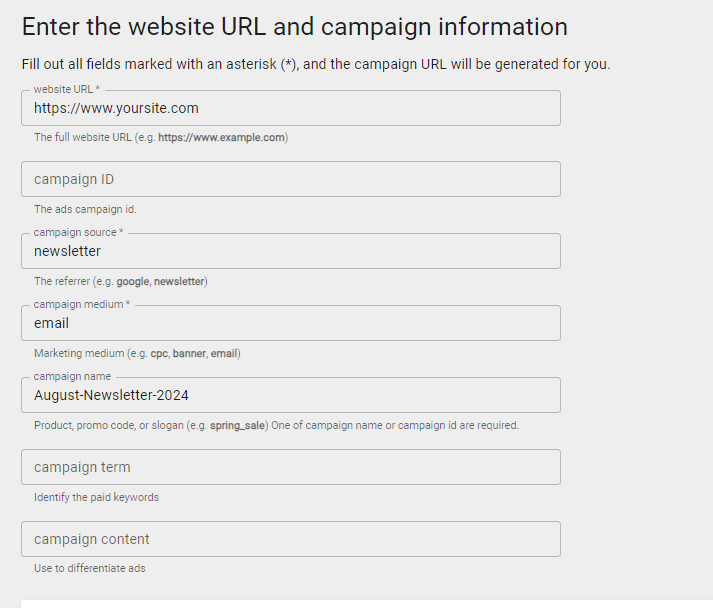
To fix this, build a campaign URL using Google’s free Campaign URL Builder. Enter your page URL, set the Source (for example, newsletter) and the Medium (for example, email), and it gives you a tagged link to use. You can also add a campaign name, term and content to track things in more detail.
One important tip: Source and Medium are case sensitive. “newsletter”, “Newsletter” and “NewsLetter” would show as three different sources, so pick a format (lowercase is easiest) and stick to it.
Can we help?
We hope you’ve found this useful. If you’d like to go further, our article on channels in Google Analytics is a good next step.
If you’re not sure your GA4 setup is tracking things properly, we can run a full Google Analytics audit. We also offer Google Analytics training and a wider range of analytics services. Get in touch and we’ll be happy to help.